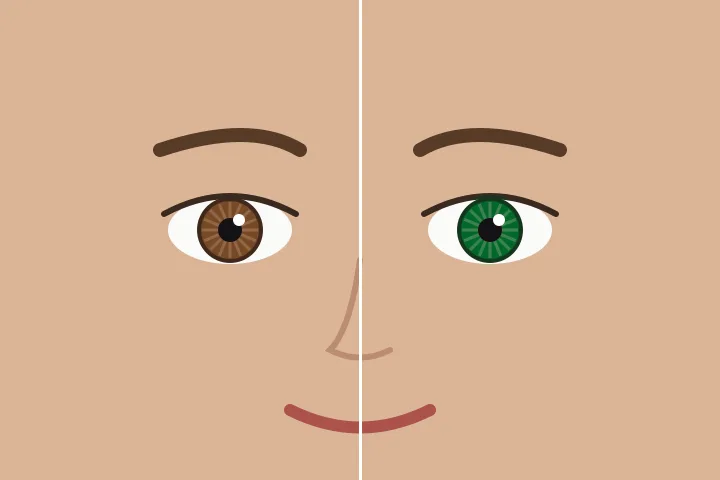
Two small circles, then colour
An iris is small and shares its colours with skin, lashes and shadow, so this door never recolours the whole picture. It works only inside two circles — placed by the face finder or drawn by you — and inside them only on pixels near the sampled iris colour.
After the finder runs, the iris colour is sampled from a small disc at each eye point, leaving out the pupil and the white. The circle size control (a share of the eye spacing) grows or shrinks both circles together.
Where it goes wrong
- Very dark brown eyes carry little colour; a bright target looks like a tint rather than a new iris. Hazel, green, grey and blue work best on light or mid irises.
- Glasses with strong reflections can hide the iris; draw the circles by hand and lower the circle size.
- Profile faces and very small faces may not be found. Draw the circles yourself.
Identity photographs such as passport photos must be unaltered. Do not use a recolour on a photo you will submit as ID.
Questions people bring to this page
How are the eyes found?
Press “Find the eyes” and a small face finder (0.22 MB, MIT licence) is downloaded once from our model file server and run in this tab. It returns each face's two eye points; a small circle goes over each, sized as a share of the distance between the eyes. The photo itself is never sent anywhere.
What if it misses an eye?
Small, turned or half-closed eyes can be missed. Draw a circle over each iris yourself with the ellipse tool that is already armed — the result is the same, because the colour change only ever happens inside the circles.
Why do the whites and the catch-lights stay white?
Neutral protection is on: pixels with almost no colour, such as the white of the eye and the reflection of a window, are never selected. The change is a hue shift with each pixel's lightness kept, so the iris keeps its texture and its dark rim.
Can I use this on a passport or visa photo?
No. Identity photographs must show your real appearance and must not be altered. This page is for fun, previews and creative edits.
Next door
- Change hair colourPaint over the hair first, then shift its hue with every strand's light and shadow kept.
- Change clothes colourA garment-first opening with the dropper armed and neutral fabric explained.
- Change an object's colourMark the object first with a rectangle or the brush, then sample and recolour inside it.
- Photos you must not editID photographs must be unaltered; what a recolour tool must refuse to promise.
Image data is never posted anywhere: decode, mask, remap and encode all happen inside this tab's memory, and that memory is released when you leave.